💪 iOS 17+ · iPhone & iPad

Earn your
screen time.
One push-up at a time.

Unblocky blocks your most distracting apps and makes you do push-ups to unlock them. Turn every craving into a rep.
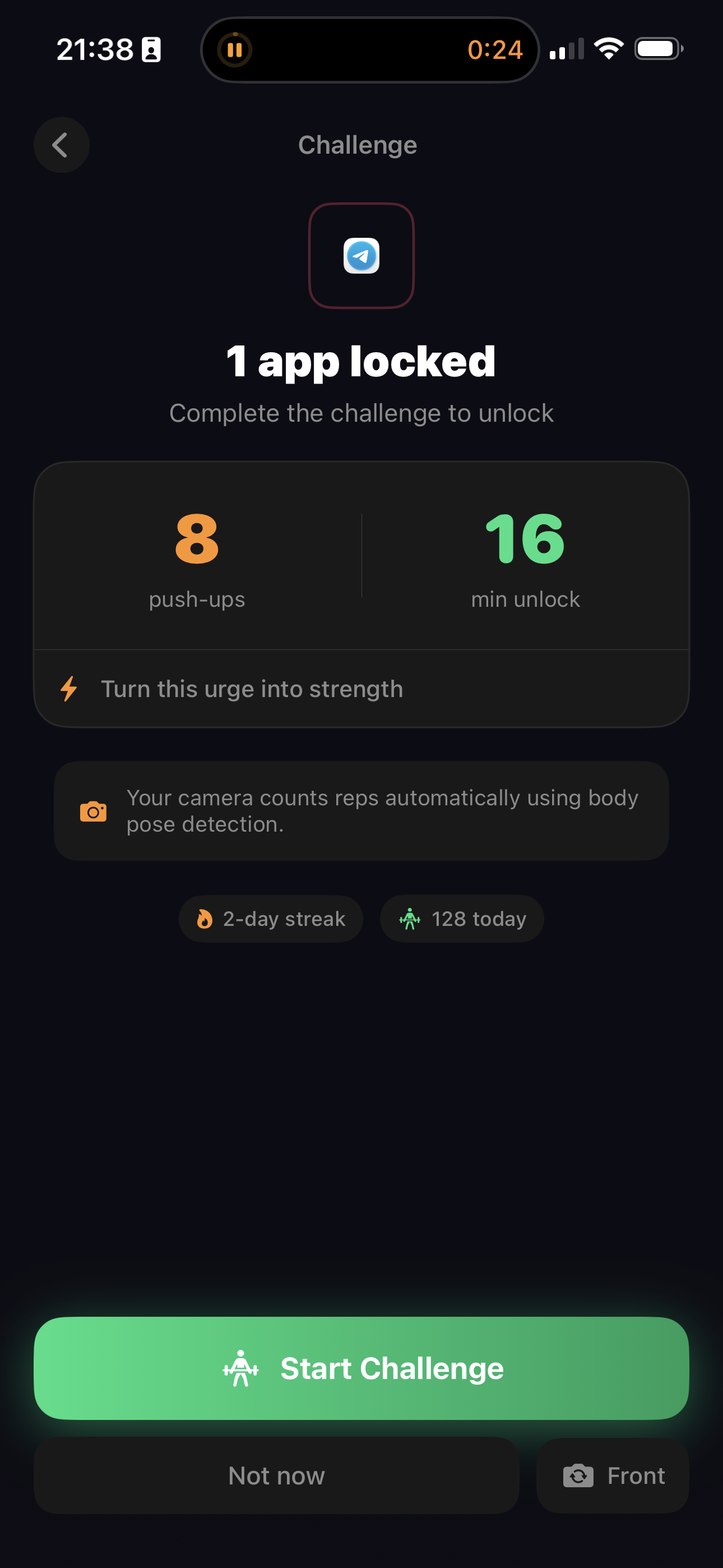
Challenge screen
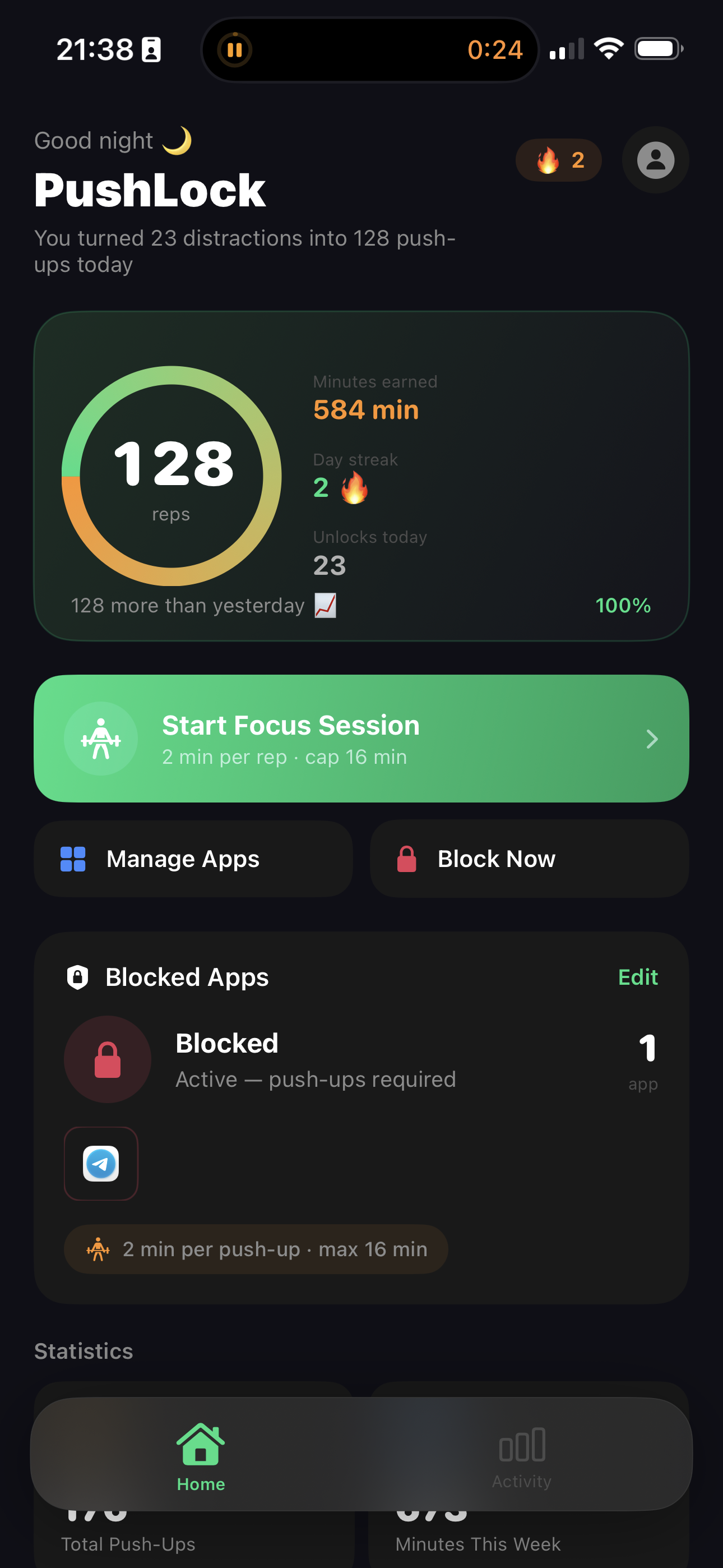
Home dashboard
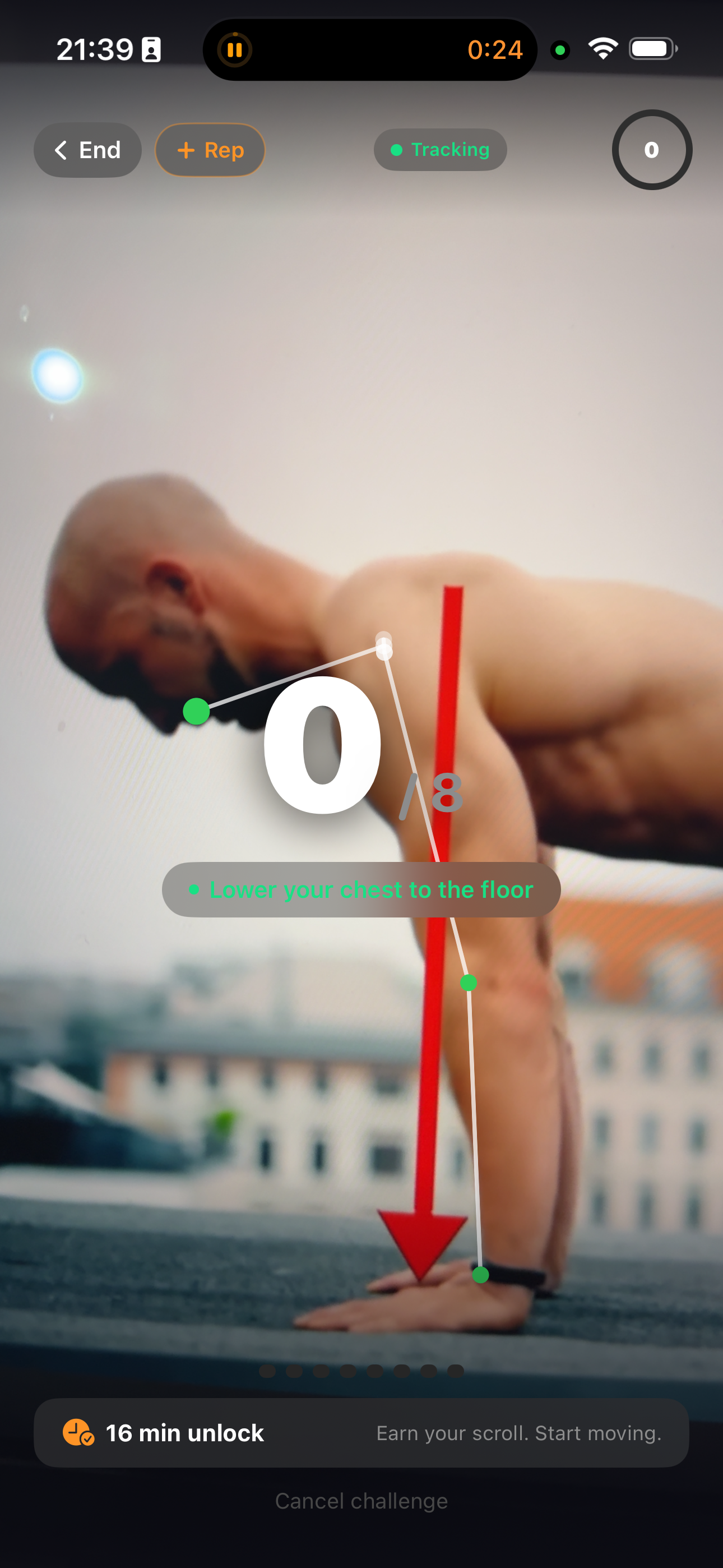
Push-up detection

Your phone. Your rules.
Your reps.

A smarter way to beat phone addiction — by turning screen cravings into strength gains.

🚫

App Blocking

Use iOS Screen Time to block any app or category — social media, games, streaming, whatever distracts you most.

💪

Push-up Challenges

When you try to open a blocked app, Unblocky intercepts and asks you to do push-ups first. No reps, no access.

👁️

Vision Rep Counting

Your camera detects and counts every push-up automatically using on-device AI. No wearables, no manual tapping.

⏱️

Earn Screen Time

Each rep earns you minutes. Complete your challenge and the app unlocks for your earned duration, then auto-relocks.

🔥

Streaks & Stats

Track daily push-up totals, weekly minutes earned, best streak, and total distractions blocked over time.

⚙️

Flexible Difficulty

Choose Easy (3 reps → 5 min), Balanced (5 reps → 10 min), or Strong (10 reps → 15 min) — or set your own.

How it works

Unblocky is dead simple. Set it up once, then let your body be the bouncer.

1

Pick Your Apps

Select which apps or categories you want to block — social media, games, news, or any app that distracts you.

2

Apps Get Blocked

Unblocky uses iOS Screen Time to put a shield on every selected app. They're locked until you earn access.

3

Do Your Push-ups

Tap "Start Challenge," point your camera down, and do your reps. The app counts every rep automatically.

4

Unlock & Enjoy

Complete your reps, earn your minutes, and open the app. When time's up, it locks again automatically.

Your daily progress,
at a glance

Track push-up totals, earned minutes, streaks, and blocked apps all from one clean home screen. Start a Focus Session or block apps instantly with one tap.

Daily rep counter 🔥 Streak tracking Quick actions
Unblocky home screen

Real-time push-up
counting with AI

Point your camera, drop down, and start moving. Unblocky's Vision framework detects your body pose and counts every rep automatically — no wearables, no tapping.

On-device AI Haptic feedback No wearable needed
Push-up detection

Watch your discipline
grow week by week

Bar charts, all-time totals, best streak, distractions blocked — your full fitness and focus history in one place. The more you resist, the better the numbers look.
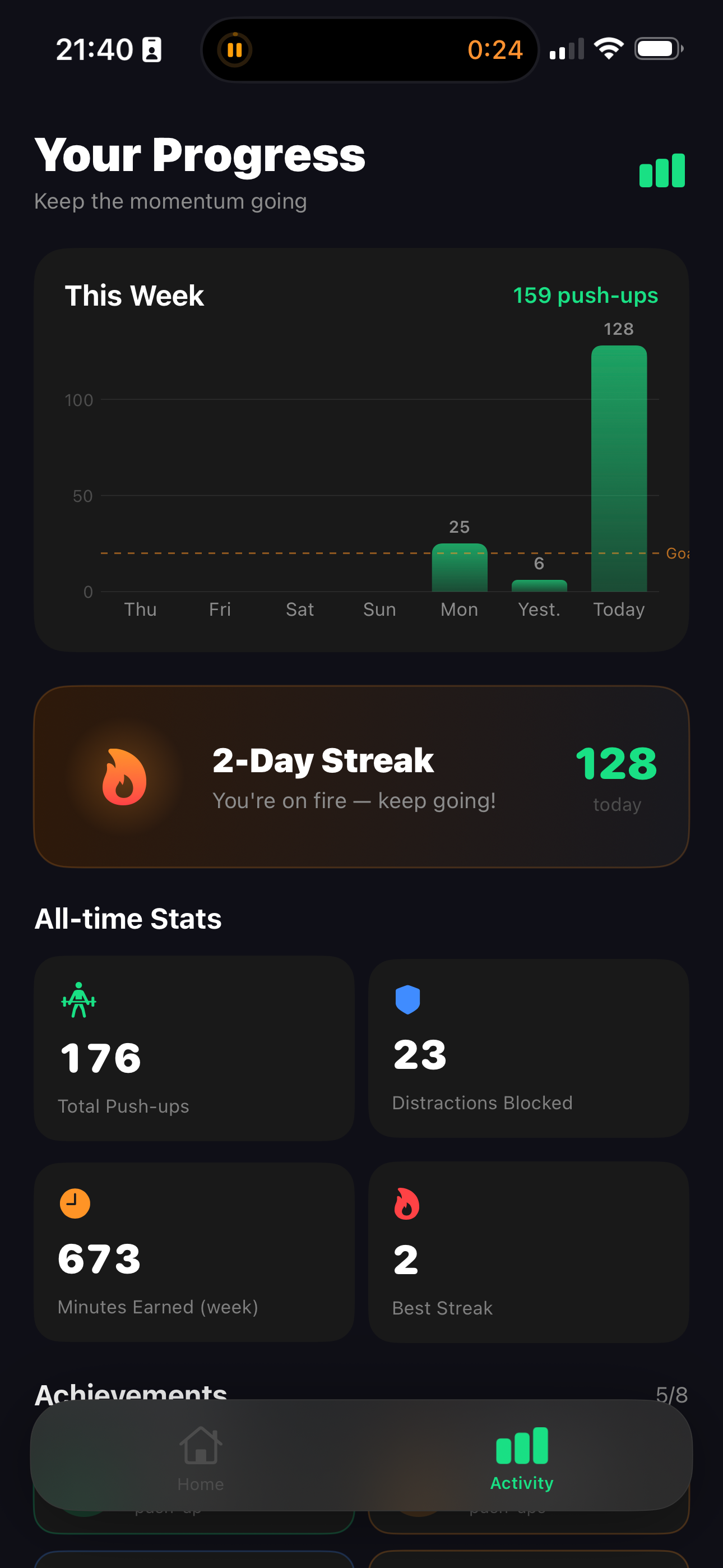
Weekly bar chart All-time stats Achievements
Progress and analytics

Everything happens
on your device.

Unblocky never uploads your camera feed, your push-up data, or your Screen Time activity anywhere. Zero servers, zero tracking.

  • Camera processed entirely on-device — never saved or uploaded
  • Screen Time control stays local via Apple's FamilyControls API
  • No account or sign-in required
  • No analytics, no ads, no tracking SDKs
  • Delete the app → all data gone instantly
Read full Privacy Policy →
🔒

Privacy by design

Your push-up reps, blocked apps, and exercise stats are stored only on your iPhone or iPad. We have no servers and no access to any of it.

We're here to help

Something not working right, or just have a question? Get in touch and we'll sort it out.

✉️

Email Support

Send us a message and we'll get back to you within 24 hours.

Send Email
🐛

Report a Bug

Push-up detection off? App not blocking? Tell us and we'll fix it fast.

Report Bug
💡

Feature Request

Have an idea — squats, pull-ups, different challenges? We want to hear it.

Share Idea

Common questions

QHow does Unblocky actually block apps?
Unblocky uses Apple's official Screen Time / FamilyControls framework — the same system built into iOS parental controls. When you select an app to block, Unblocky applies a "shield" through Screen Time that intercepts every launch attempt. This requires you to grant Unblocky Screen Time authorization during onboarding.
QWhy does Unblocky need camera access?
The camera is used solely to count your push-up reps in real time using Apple's Vision framework for pose detection. The camera feed is processed entirely on-device and is never saved, stored, or transmitted anywhere. You can revoke camera access in Settings → Privacy & Security → Camera at any time.
QPush-up detection isn't working — what should I do?
For best results: place your phone on the floor in front of you in landscape or portrait orientation, ensure there's good lighting, and start with your full body visible in frame. The camera needs a clear view of your upper body as you move up and down. If detection is still off, try adjusting the phone position or improve lighting conditions.
QDoes Unblocky require an account?
No account, no sign-up, no email required. Download and start using Unblocky immediately. All your data — streaks, stats, settings — lives locally on your device.
QWhy does Unblocky need Screen Time authorization?
Screen Time authorization (via Apple's FamilyControls framework) is what gives Unblocky the ability to block and unblock apps. Without it, iOS will not allow any third-party app to control Screen Time. This permission stays entirely on your device — Unblocky cannot access Screen Time remotely.
QWhich apps can I block?
You can block any individual app installed on your device, or block entire categories (social networking, games, entertainment, etc.). You can also unblock or change your selection at any time from the Unblocky app.
QWhat happens after I earn my screen time?
Once you complete your push-up challenge, the blocked app unlocks for your earned duration (e.g., 10 minutes on Balanced mode). When that time expires, the app automatically re-locks. You'll need to do another push-up challenge to unlock it again.
QCan I change the difficulty or push-up requirement?
Yes. In Settings you can choose from Easy (3 reps → 5 min), Balanced (5 reps → 10 min), or Strong (10 reps → 15 min) presets, or configure a custom reps-to-minutes ratio. You can also set a maximum unlock cap.
QDoes Unblocky collect any personal data?
No. Unblocky does not collect, store, or transmit any personal information. No analytics, no crash reporting to external servers, no ads. All data stays on your device. See our Privacy Policy for full details.
QHow do I completely reset Unblocky?
In Settings → Clear Data you can reset all stats and preferences. To remove all data entirely, delete the app from your device. Note: you may also need to manually remove Unblocky's Screen Time permissions in iOS Settings → Screen Time.